Tags

Using the Tags action

The Tags action allows you to attach tags to chats. Later, you can filter conversations by these tags for easier management and analysis.


Steps:

  1. Select or create the node where you want to add tags.
  2. Add the Tags action.
  3. Choose the action mode (StaticMessage, or AI).
  4. Configure the action based on the selected mode:
    • Static → Select or create static tags that will always be attached to the chat at this node.
    • Message → The message will automatically be saved as a tag.
    • AI → Provide a clear prompt for the AI to analyze the message and assign tags accordingly.
  5. Click Save.

Functions available in “Tags” action:

ModeDescription
STATICCreate or select existing static tags that will be permanently attached to the chat.
MESSAGEAutomatically tags the chat with any message sent in this node.
AIThe AI analyzes the message according to your prompt and assigns tags dynamically.

⚠️ Important: AI requires a clear and well-defined prompt; otherwise, it may hallucinate and assign many irrelevant tags.


Examples of usage:

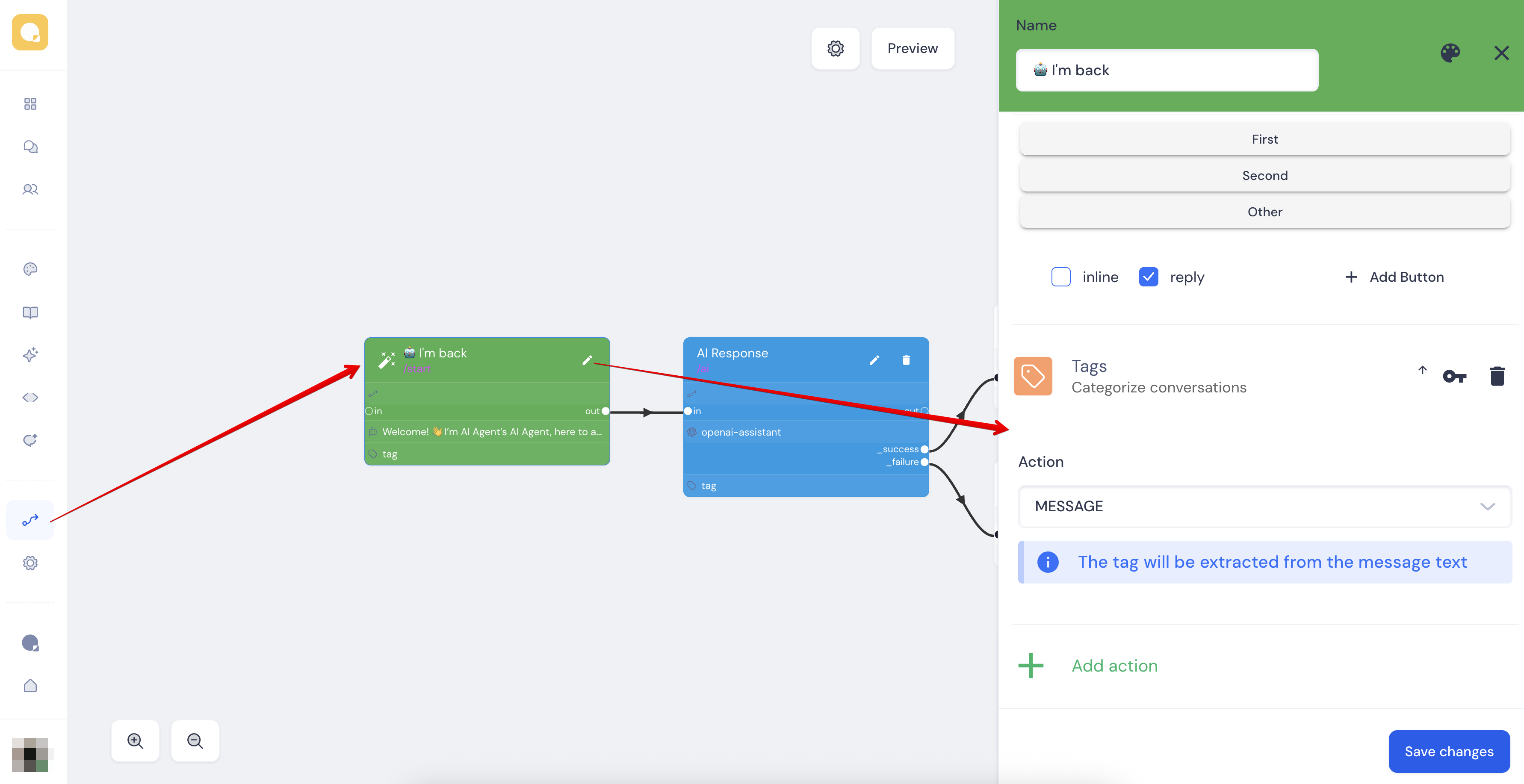
1. MESSAGE mode | Tagging the first user action
When starting a chat, you may have suggested buttons (e.g., FirstSecondOther). You want to track which option the user clicked first.

  • Go to Flow → /start node
  • Add Action Tags → Select Message mode
  • Save.
    Now, the first user message will be saved as a tag in the chat.

Example: 


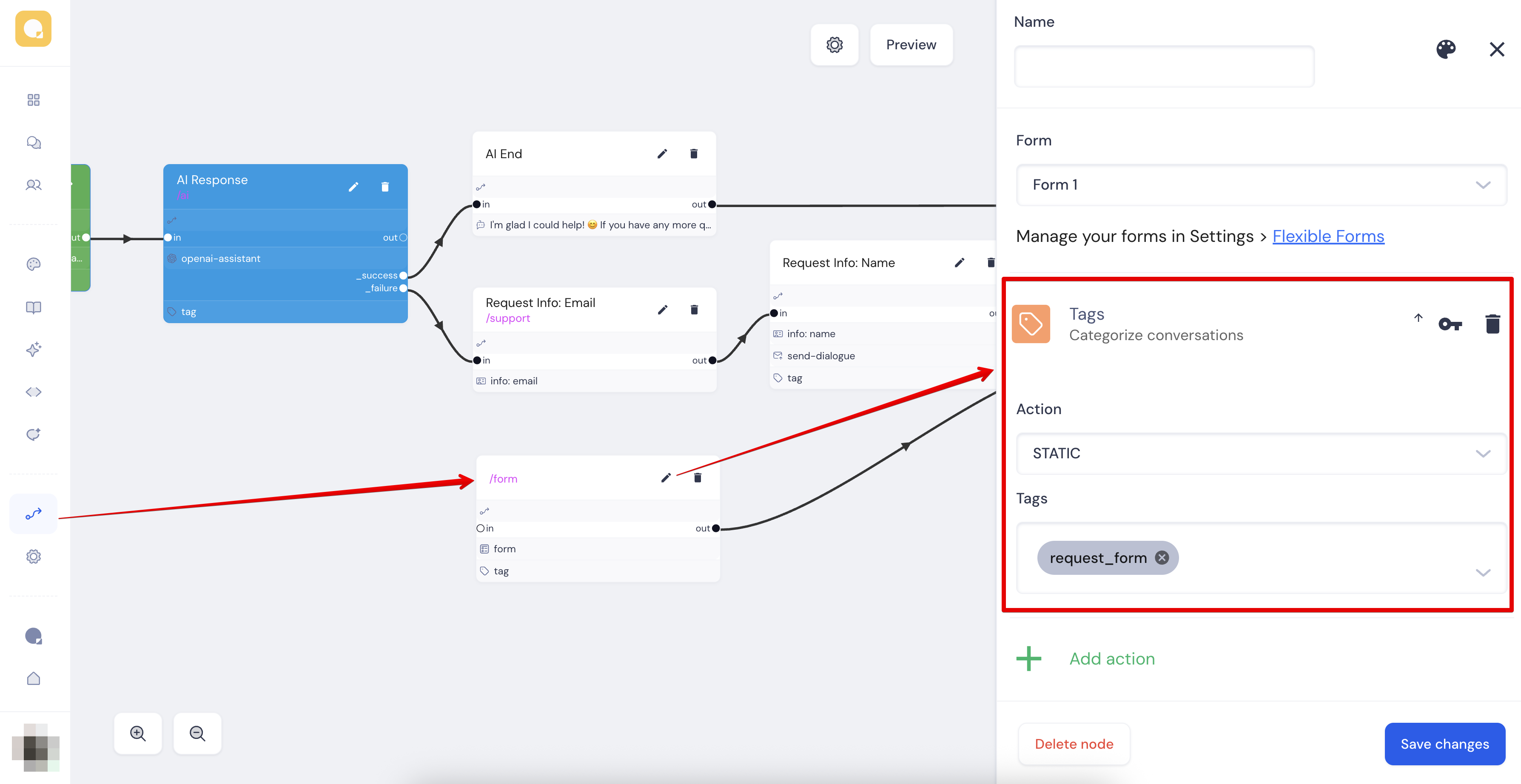
2.STATIC mode | Tracking forms
You want to filter chats by users who triggered a form (e.g., Flexible forms).

  • Go to Flow → the node with Action “Request Form”
  • Add Action Tags → Select Static mode
  • Add a static tag (e.g., request_form) → Save.
    Now, all chats where users requested the form will have the request_form tag attached.

Example: 


3.AI mode | AI-based tagging
You want AI to analyze messages and assign specific tags.

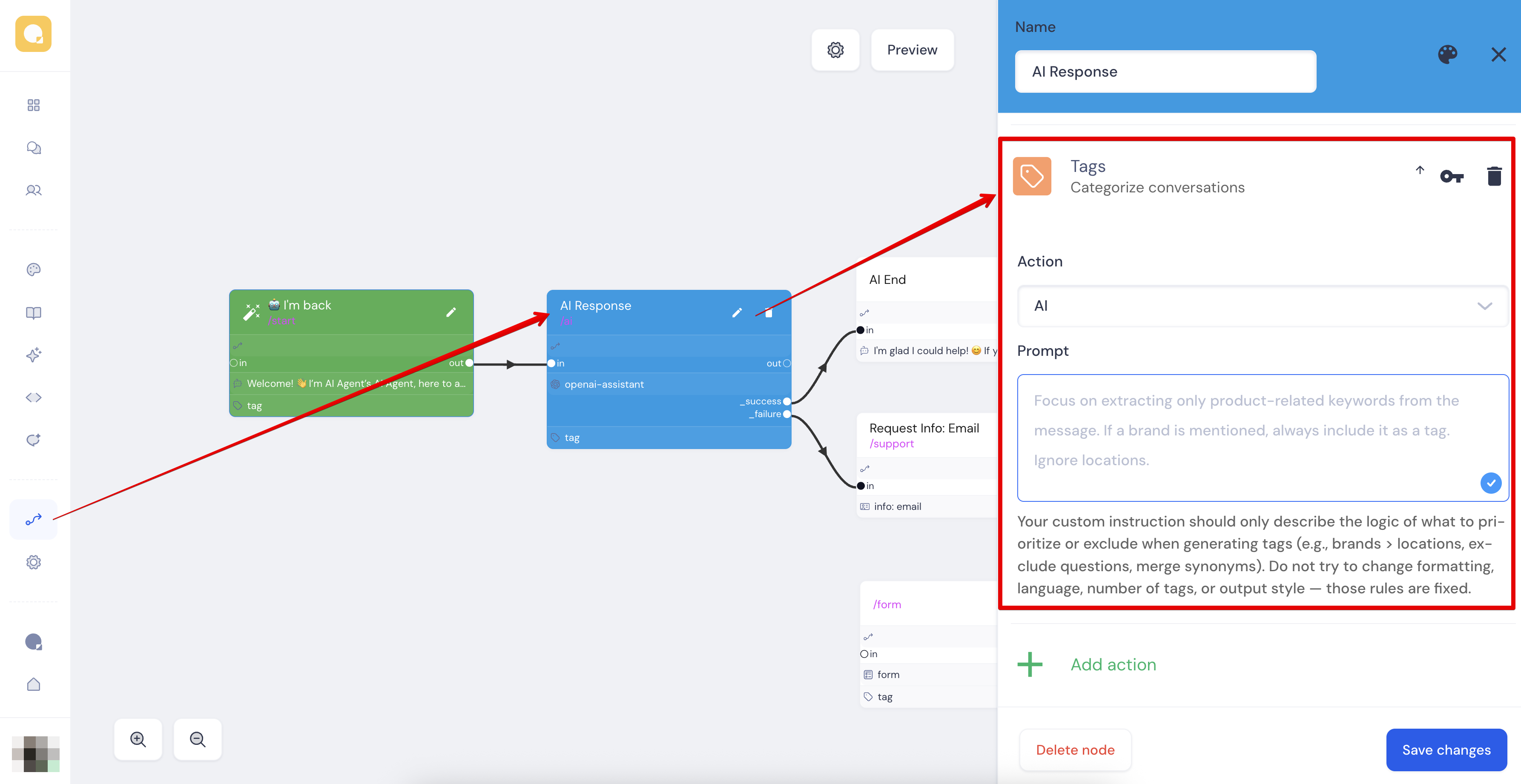
  • Go to Flow → AI Response (/ai) node
  • Add Action Tags → Select AI mode
  • Enter a clear prompt describing how tags should be applied → Save.
    Now, AI will analyze each message and assign tags automatically based on your rules.

Example: 


Where to use Tags?

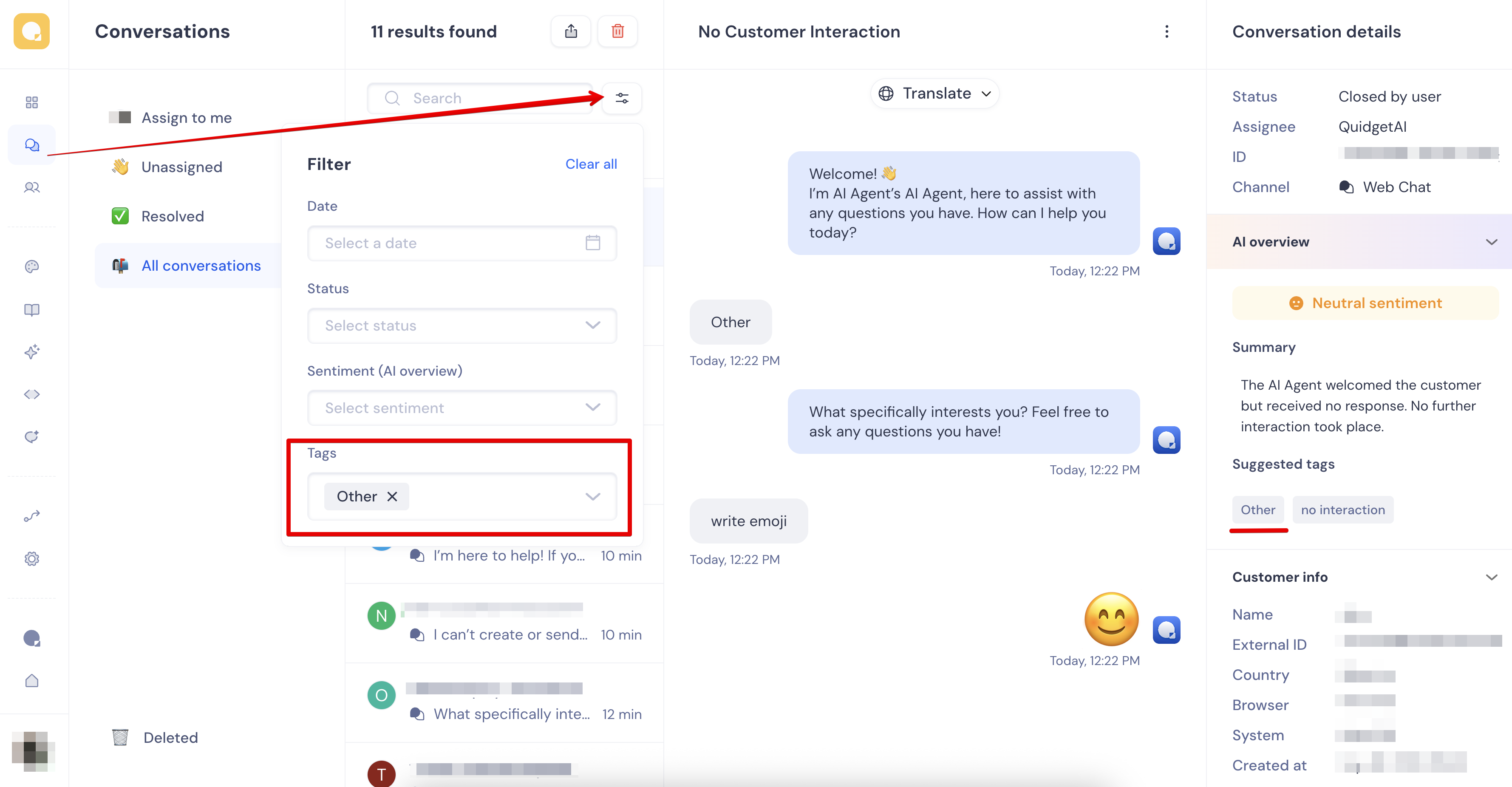
Go to Sidebar → Conversations.

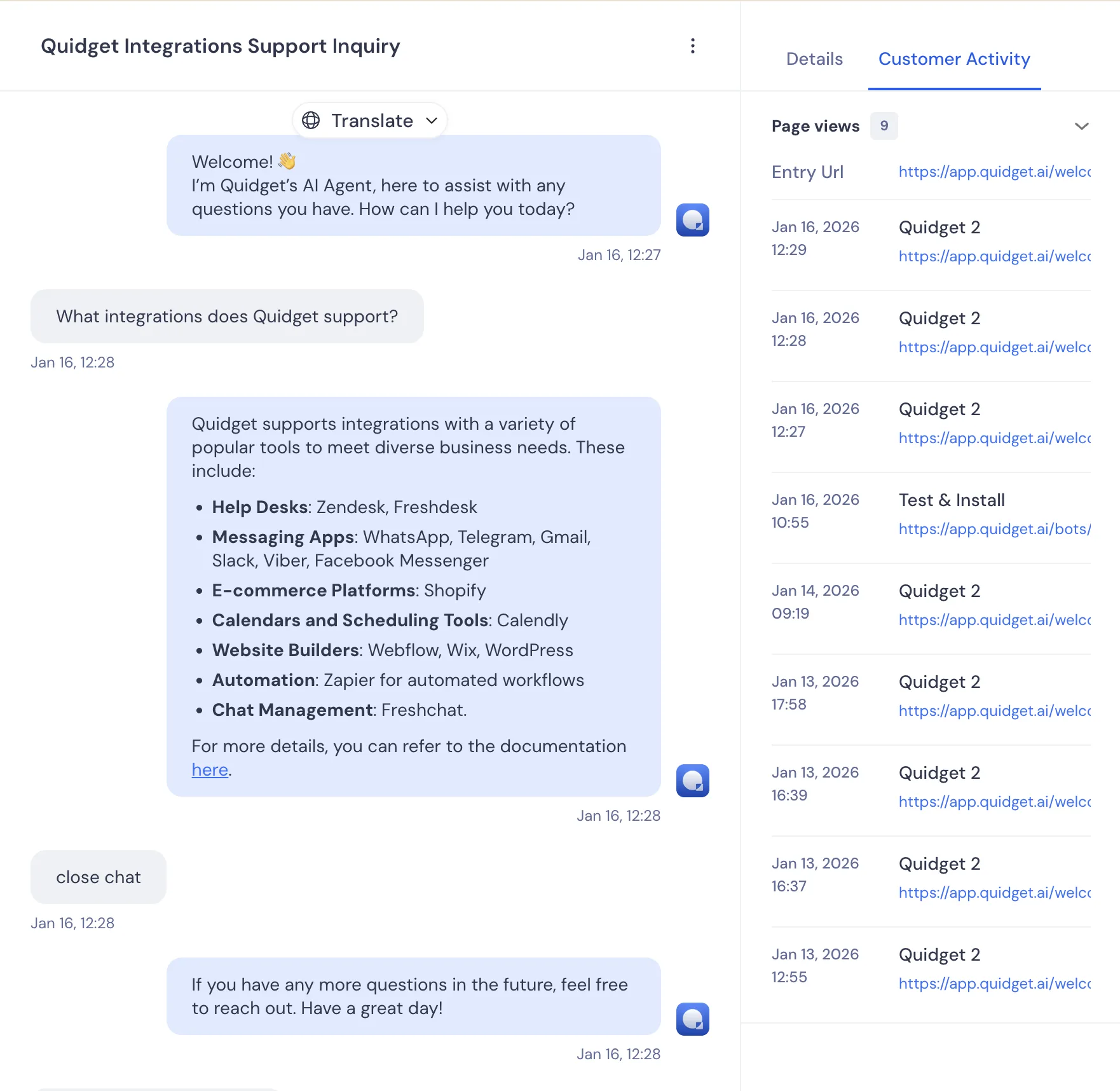
  • Open the Resolved or All conversations tab (tags are added only after the chat is closed).
  • Click the filter icon (next to search).
  • Select the tags you want to filter by.
    All chats will be filtered by the selected tag. 🎉

Example: 

Share this article

Auto Translate Feature

Auto Translate Feature

Inside flow, possible to enable automatic translation for supported languages.

To activate it:

  1. Open Flow page on the left side of the menu.
  2. Click the gear icon (⚙️) in the top-right corner to open Flow Settings.
  3. Check the box Auto translate to automatically translate content between languages.
  4. Click Save.

When enabled, Auto Translate will detect the user’s language and display the flow content accordingly.

Share this article

Creating a new node

Creating a new node

Overview

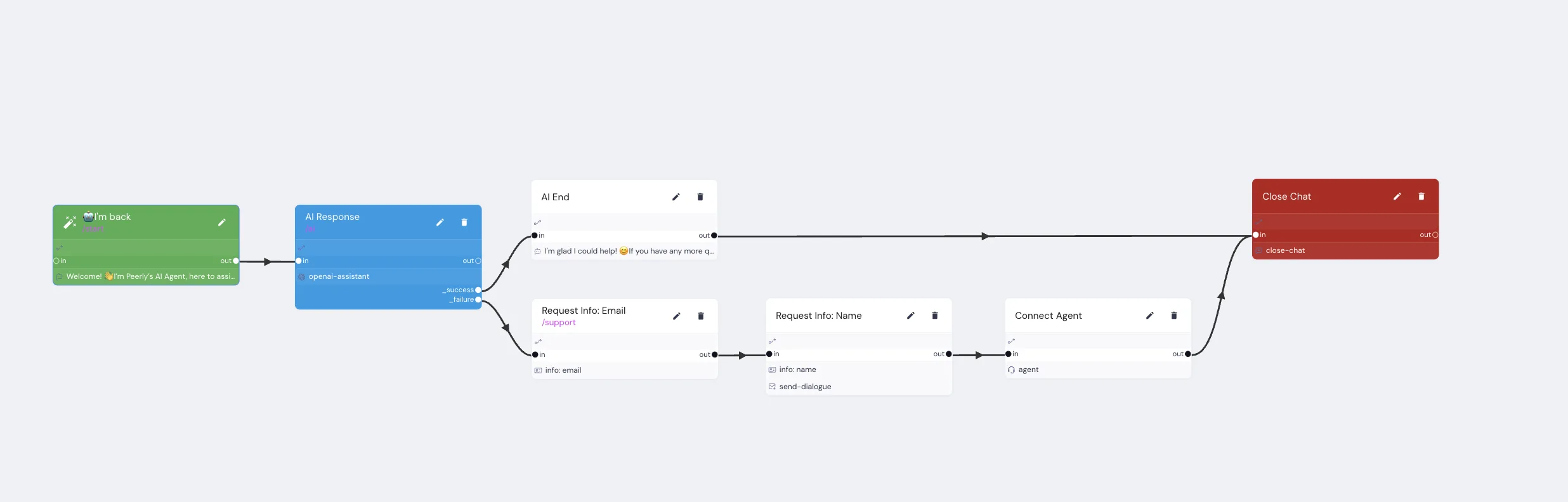
Creating a new bot and opening the Flow page displays an initial, pre-configured chatbot flow. This starter setup includes seven ready-to-use nodes, beginning with the /start node, which initiates the conversation.

The flow proceeds to an AI Response node. If the AI successfully resolves the user’s request, the chatbot transitions to a Close Chat (Success) node, completing the interaction.

If the AI cannot find a solution, the flow advances to a Request Node, where the bot collects the user’s email, name and prepares the conversation for human assistance. The next step is the Connect Agent (Human Handoff) node, which transfers the user to a live support agent. After the agent provides a resolution, the process concludes with a Close Chat (After Human Assistance) node.

How to Create a New Node

Follow these steps to add a new node to your chatbot flow:

  1. Open the Flow page.
  2. Hover your cursor over an existing node.
  3. You will see two buttons appear on the right side:”+” button (add a new node) “Duplicate” button (create a copy of the current node) To create a new node, click the “+” button.

Tip: Use the “Duplicate” button to quickly copy an existing node and its settings.

  1. In the window that opens, enter a clear name for your new node in the Node Name field. (This name helps you find and manage the node later.)
  2. Click Add action and select the desired action type (for example, select Message to send a text response).
  3. Fill in the details for the chosen action. For the Message action:
  4. Type the message you want your chatbot to send to users.
  5. When finished, click Save to add your new node.

Your newly created node appears connected to the previous node in the flow. You can drag the new node around to organize your flow clearly.

Share this article

Connecting Nodes

Connecting Nodes

Overview

Connecting nodes allows your chatbot conversation to move from one node to another, creating a logical conversation flow for users. Nodes can be connected using visual arrows that clearly show the chatbot’s path of interaction.

How to Connect Nodes

You can connect nodes in two ways.

Option 1: Drag and Drop Connection

Use this method to visually link nodes:

  1. Hover your mouse over the node you want to connect from.
  2. Click and hold the “Out” arrow that appears on the right side of this node.
  3. Drag the line to the “In” arrow of the node you want to connect to.
  4. Release the mouse button to complete the connection.
  5. Click Save.

This creates a visual connection (arrow line) between the two nodes.

Option 2: Using the “Go to node” Field

Use this method if you know the exact name of the node you want to connect:

  1. Select the node you want to connect from (click on it to open settings).
  2. Find the Go to node field.
  3. Enter the name of the node you wish to connect to.
  4. Click Add transition to create the connection automatically.

An arrow line displays to visually confirm the new connection.

Share this article

Adding Buttons

Adding Buttons to Messages

Buttons allow users to interact directly with your messages. With buttons, you can direct users to websites, open apps, or start specific actions like making purchases.


How to Add Buttons

Follow these steps to add buttons to your messages:

  1. Open the Message node you want to edit.
  2. Click the Keyboard icon.
  3. Choose the type of button from the available options.
  4. Enter the text you want displayed on the button.
  5. Click Save

Note: If you use a GO TO button, first create the related nodes.

Button Placement Options You have two ways to position buttons. The button position affects which button types you can use:

Inline: Buttons appear directly below the message text. Reply: Buttons appear under the user’s input field, typical in messaging apps like Telegram or Viber.

Selecting button placement does not affect WebChat.

Use different buttons depending on your scenario:

  1. Inline:
FunctionDescription
TEXTSend the text added to the “Value” field to the user.
URLSend the link added to the “Value” field to the user.
GO TOTransfer the user to the Node added to the “Value” field.
BACKTransfer the user to the previous Node.
  1. Reply
FunctionDescription
TEXTSend the text added to the “Value” field to the user.
GO TOTransfer the user to the Node added to the “Value” field.
PHONEGives an opportunity to share the phone.
LOCATIONProvides an opportunity to share the location.
BACKTransfer the user to the previous Node.
Share this article

Request info

Requesting information from user

The block “Request information from the user” is used to gather information from the user. This information can be used to personalize the user’s experience, to provide better recommendations, or to improve the product or service. The information that is requested can vary depending on the product or service, but it can include things like the user’s NAMEEMAILPHONE NUMBER and LOCATION.


Steps:

  1. Click the “Request Info” action.
  2. Enter the text of your message to the user.
  3. Add the text of your success message.
  4. Add the text of your error message.
  5. Click the “Save” button.
Share this article

Variables

Using variables in your messages

You can use variables in your messages to personalize them for your customers. For example, you could use the {{{customer.name}}} variable to include the customer’s name in your message. To see a list of available variables, click on the curly braces icon {}.


Steps:

  1. Enter the variable name in your message, surrounded by curly braces.
  2. Click the “Save” button.
Share this article

Webhooks

Using webhooks

A webhook is a simple way to send data to another application or service. It can be used to automate tasks, trigger actions, collect data, create dashboards, and build chatbots.


Steps:

  1. Click the “Webhook” action.
  2. Select the “Run” option (before or after).
  3. Select the “Method” (GET, POST, PUT, PATCH, DELETE).
  4. Enter the URL of the webhook.
  5. You may need to enter these Header values. You have the option to use the “+ Add Headers” button and fill in the “Key” and “Value” (for example, the API key).
  6. You will also need to enter Parameter values. To do this, you can use the button “+ Add Parameters” and fill in the “Key” and “Value” (for example, the data of longitude and latitude, city, age, etc.).
  7. Click the “Save” button.

The table provides information on the various methods and their descriptions.

MethodDescription
POSTCreates a new resource on the server.
GETRetrieves a resource from the server.
PUTUpdates an existing resource on the server.
PATCHUpdates a portion of an existing resource on the server.
DELETEDeletes a resource from the server.
Share this article

Logic actions

Using logic actions

A logic action is a type of action that allows you to test a message against a condition. If the condition is met, the action will be executed. To use a logic action, you need to add it to a node and complete the following settings.


Steps:

  1. Click the “Logic” action.
  2. Enter the Input value that you want to test (if empty, the input value will be a message).
  3. Select the “Condition” (CONTAIN, EQUAL, GTE, LTE, IS, REGEX).
  4. Enter the value that you want to test.
  5. Turn on the “Ignore case when doing comparison” toggle if you want to ignore the case.
  6. Select the “Action” (GO TO, CONTEXT).
  7. Enter the value that you want to use in the action.
  8. Click the “Save” button.

For example, you could use a logic action to test if a message contains a certain word. If the message does contain the word, you could then execute an action that sends the message to a different queue.


The table shows the different conditions and their descriptions, with examples:

ConditionDescriptionExample
CONTAINChecks if a string contains a certain substring.CONTAIN (text, ‘hello’)
EQUALChecks if two strings are equal.EQUAL (text1, text2)
GTETests if a number is greater than or equal to a certain value.GTE (1, 10)
LTEChecks if a number is less than or equal to a certain value.LTE (7, 10)
ISTests if a value is true or false.IS (true)
REGEXChecks if a string matches a certain regular expression.REGEX (text, ‘d+’)

Action is a keyword that tells the system what to do after processing the message. There are two types of actions: GO TO and CONTEXT.

  • GO TO tells the system to go to another node in the conversation flow.
  • CONTEXT tells the system to show the value of a context variable.

Here is a table that shows the different actions and their corresponding values:

ActionValue
GO TONode name or command (/…)
CONTEXTContext variable name
Share this article