
iOS
How to Embed Quidget in an iOS App (WKWebView)
Quidget runs inside your iOS app the same way it runs on the web — the chat is a web page hosted in a WKWebView. You create the web view, point it at your Quidget chat URL, and wire up a couple of delegate methods so the microphone and links behave natively.
Step-by-Step Guide to Embedding Quidget Chat in an iOS App
Step 1. Get your integration id
- Go to https://app.quidget.ai/ and log in.
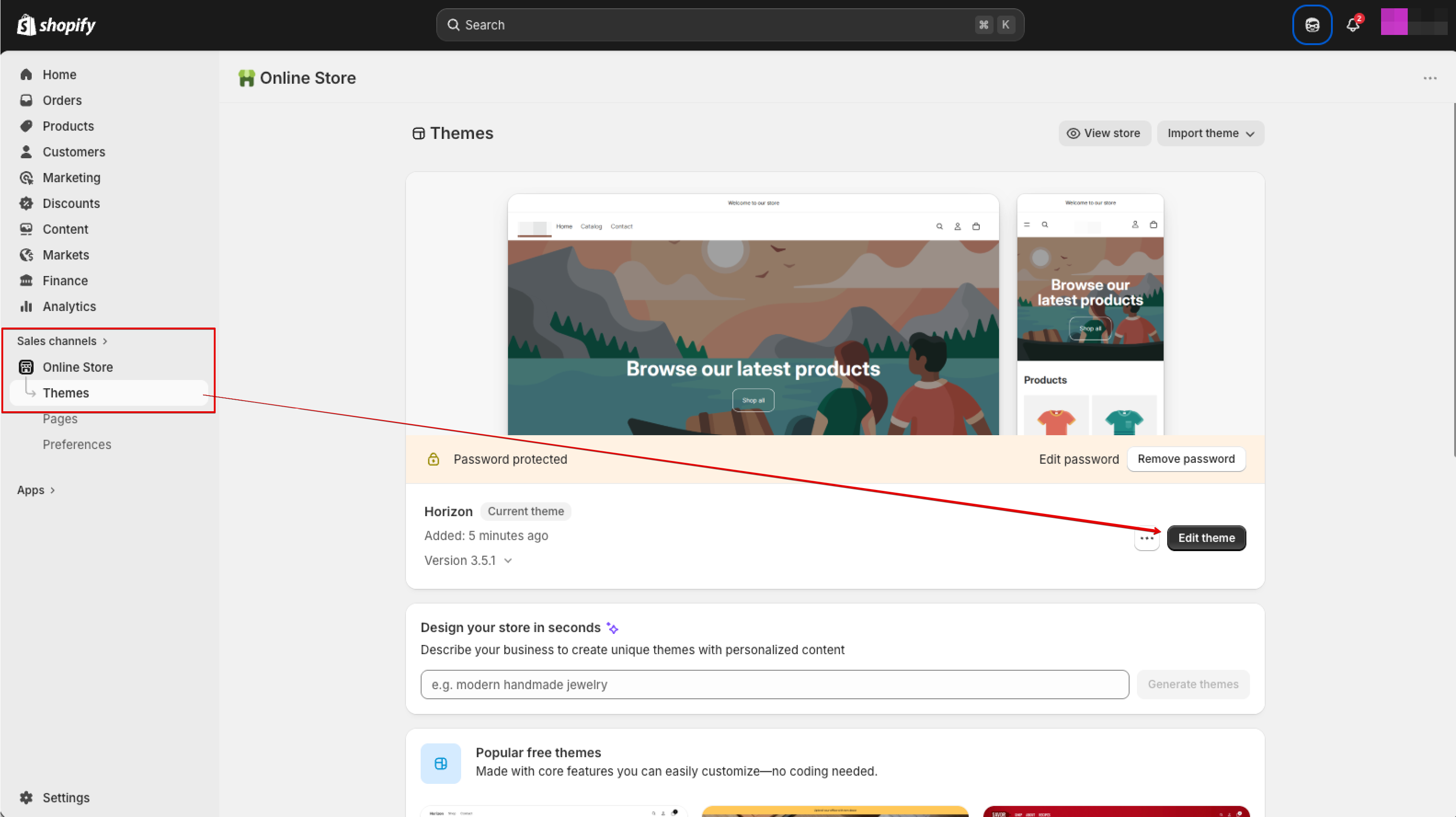
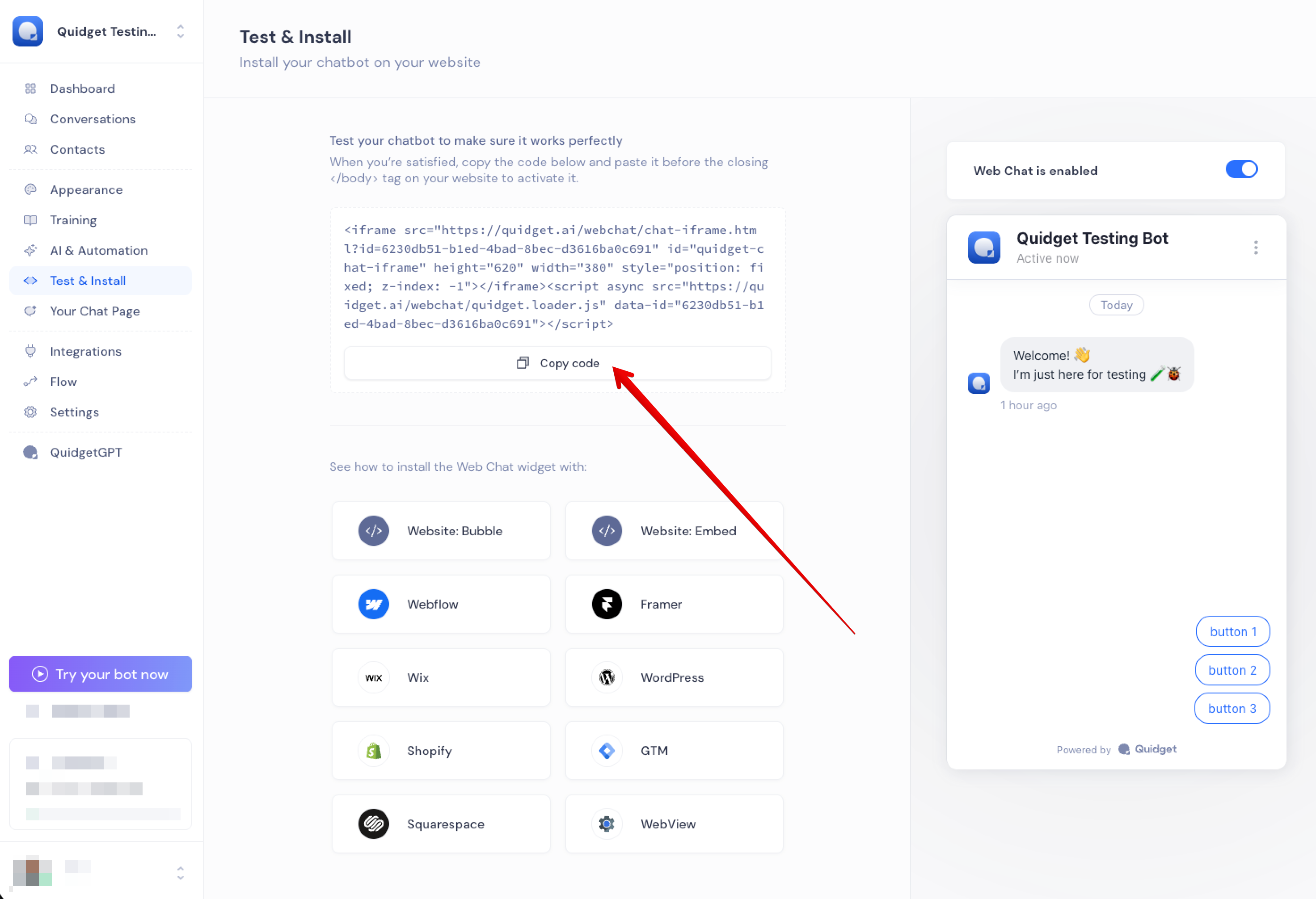
- Open the Test & Install tab in the sidebar.
- Copy your unique integration id. You will pass it in the chat URL below.
Step 2. Add usage descriptions to Info.plist
iOS shows the user a reason string the first time the app uses the microphone or camera.
Add these keys (Xcode ▸ your target ▸ Info):
| Key | Used for |
|---|---|
NSMicrophoneUsageDescription | the chat’s voice button |
NSCameraUsageDescription | attaching a photo taken with the camera |
NSPhotoLibraryUsageDescription | attaching an image from the photo library |
Example value: "Used to send voice messages and attachments in support chat."
Step 3. Add the WebView screen
Create a new iOS App (Interface: Storyboard, Language: Swift) and replace the generated ViewController with the code below.
It points the web view at the chat in permanent mode (&chatView=permanent) so it renders full-screen instead of as a floating bubble.
Replace integrationID with your own id from Step 1.
// Quidget iOS WKWebView integration example.
// Info.plist keys required:
//   NSMicrophoneUsageDescription         — voice messages
//   NSCameraUsageDescription             — camera attachments
//   NSPhotoLibraryUsageDescription       — photo library attachments
// Replace integrationID with your id from app.quidget.ai > Test & Install.

import UIKit
import WebKit

final class ViewController: UIViewController {

    // MARK: - Constants

    private static let integrationID = "6230db51-b1ed-4bad-8bec-d3616ba0c691" // Replace with your integration id
    private static let widgetHost    = "quidget.ai"
    private static let chatURL       = URL(
        string: "https://(widgetHost)/webchat/chat-iframe.html?id=(integrationID)&chatView=permanent"
    )!

    // chat-iframe.html ships without <meta viewport>; WKWebView defaults to a ~980pt assumed
    // width and shrinks the chat tiny. This script forces device-width before the page loads.
    private static let viewportScript = WKUserScript(
        source: """
            var m = document.createElement('meta');
            m.name = 'viewport';
            m.content = 'width=device-width, initial-scale=1';
            (document.head || document.documentElement).appendChild(m);
            """,
        injectionTime: .atDocumentStart,
        forMainFrameOnly: true
    )

    // MARK: - Views

    private lazy var webView: WKWebView = {
        let config = WKWebViewConfiguration()
        config.allowsInlineMediaPlayback = true
        config.mediaTypesRequiringUserActionForPlayback = []
        config.userContentController.addUserScript(Self.viewportScript)

        let wv = WKWebView(frame: .zero, configuration: config)
        wv.uiDelegate = self
        wv.navigationDelegate = self
        wv.allowsBackForwardNavigationGestures = true
        wv.scrollView.contentInsetAdjustmentBehavior = .never
        #if DEBUG
        if #available(iOS 16.4, *) { wv.isInspectable = true }
        #endif
        return wv
    }()

    // MARK: - Lifecycle

    override var preferredStatusBarStyle: UIStatusBarStyle { .darkContent }

    override func viewDidLoad() {
        super.viewDidLoad()
        view.backgroundColor = .white
        setupWebView()
        webView.load(URLRequest(url: Self.chatURL))
    }

    // MARK: - Private

    private func setupWebView() {
        view.addSubview(webView)
        webView.translatesAutoresizingMaskIntoConstraints = false
        let safe = view.safeAreaLayoutGuide
        // Pin to the safe area so the chat clears the Dynamic Island, notch, and home indicator.
        NSLayoutConstraint.activate([
            webView.topAnchor.constraint(equalTo: safe.topAnchor),
            webView.bottomAnchor.constraint(equalTo: safe.bottomAnchor),
            webView.leadingAnchor.constraint(equalTo: safe.leadingAnchor),
            webView.trailingAnchor.constraint(equalTo: safe.trailingAnchor),
        ])
    }

    private func openExternally(_ url: URL) {
        UIApplication.shared.open(url)
    }
}

// MARK: - WKUIDelegate

extension ViewController: WKUIDelegate {

    // Voice input: auto-grant the microphone capture prompt.
    @available(iOS 15.0, *)
    func webView(_ webView: WKWebView,
                 requestMediaCapturePermissionFor origin: WKSecurityOrigin,
                 initiatedByFrame frame: WKFrameInfo,
                 type: WKMediaCaptureType,
                 decisionHandler: @escaping (WKPermissionDecision) -> Void) {
        decisionHandler(.grant)
    }

    // Links opened via target="_blank" go to the system browser.
    func webView(_ webView: WKWebView,
                 createWebViewWith configuration: WKWebViewConfiguration,
                 for navigationAction: WKNavigationAction,
                 windowFeatures: WKWindowFeatures) -> WKWebView? {
        if let url = navigationAction.request.url { openExternally(url) }
        return nil
    }
}

// MARK: - WKNavigationDelegate

extension ViewController: WKNavigationDelegate {

    // Keep Quidget pages in the WebView; route external links to Safari.
    func webView(_ webView: WKWebView,
                 decidePolicyFor navigationAction: WKNavigationAction,
                 decisionHandler: @escaping (WKNavigationActionPolicy) -> Void) {
        if navigationAction.navigationType == .linkActivated,
           let url = navigationAction.request.url,
           let host = url.host,
           !host.hasSuffix(Self.widgetHost) {
            openExternally(url)
            decisionHandler(.cancel)
        } else {
            decisionHandler(.allow)
        }
    }
}
Step 4. Run
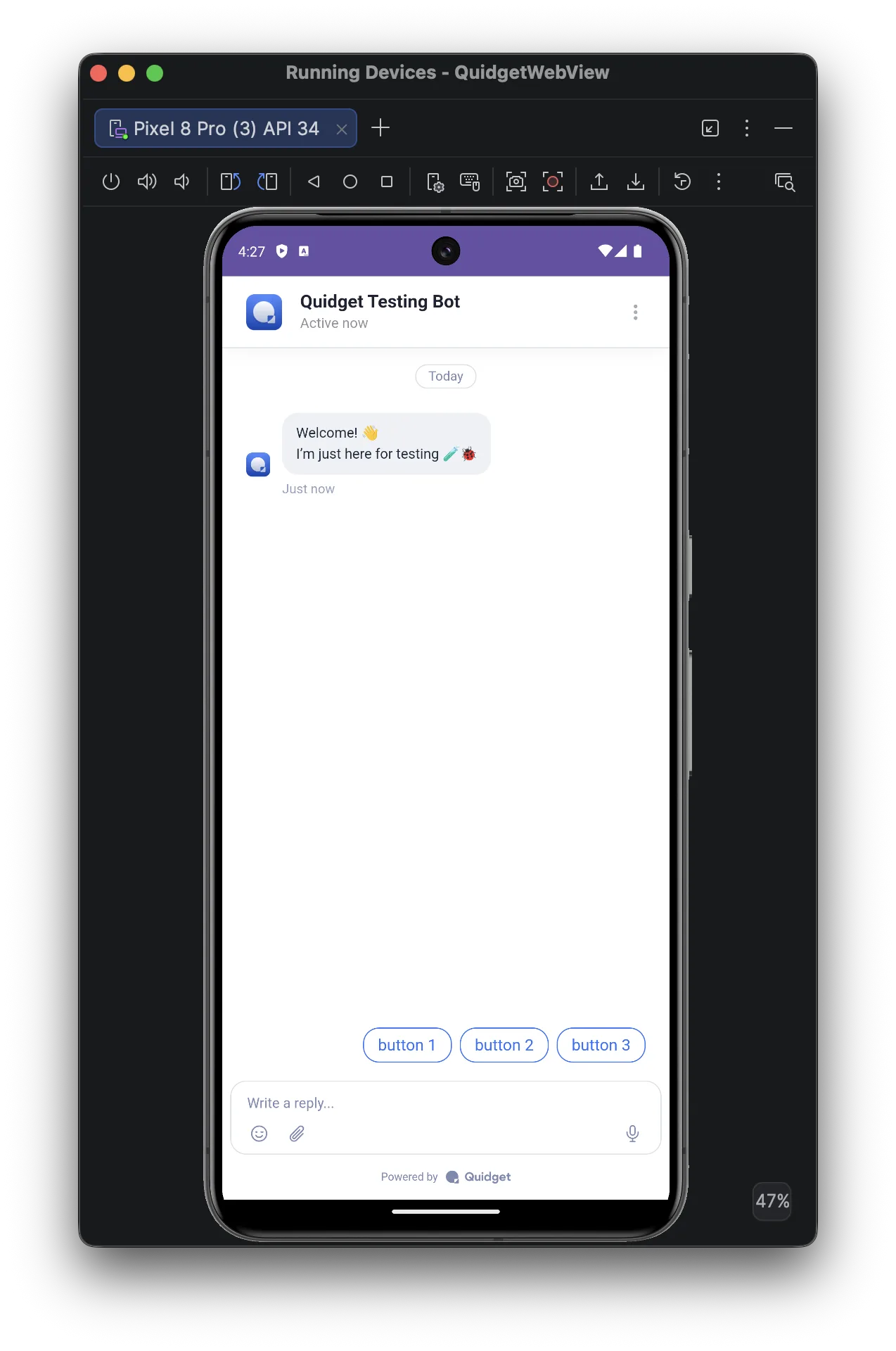
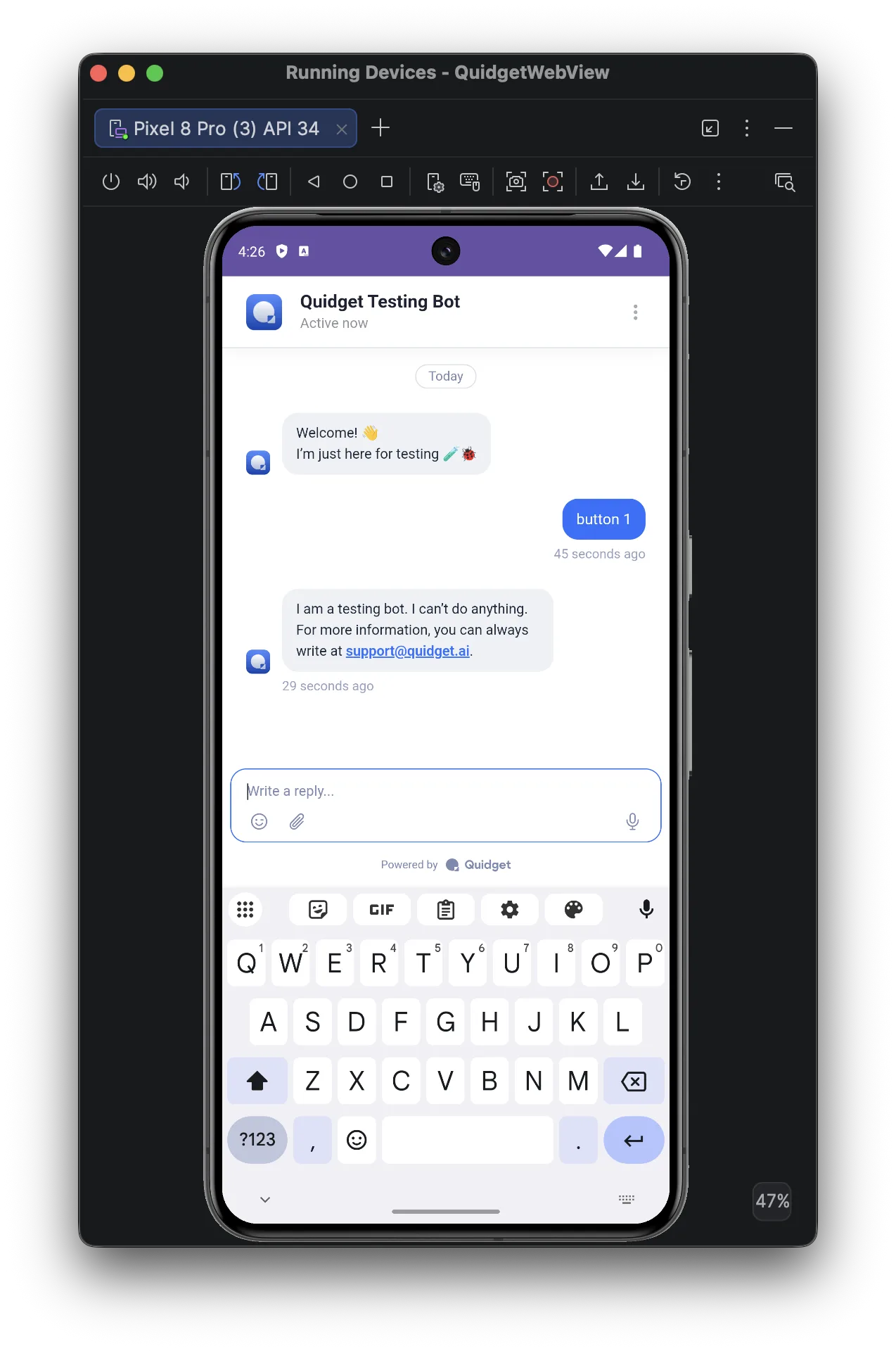
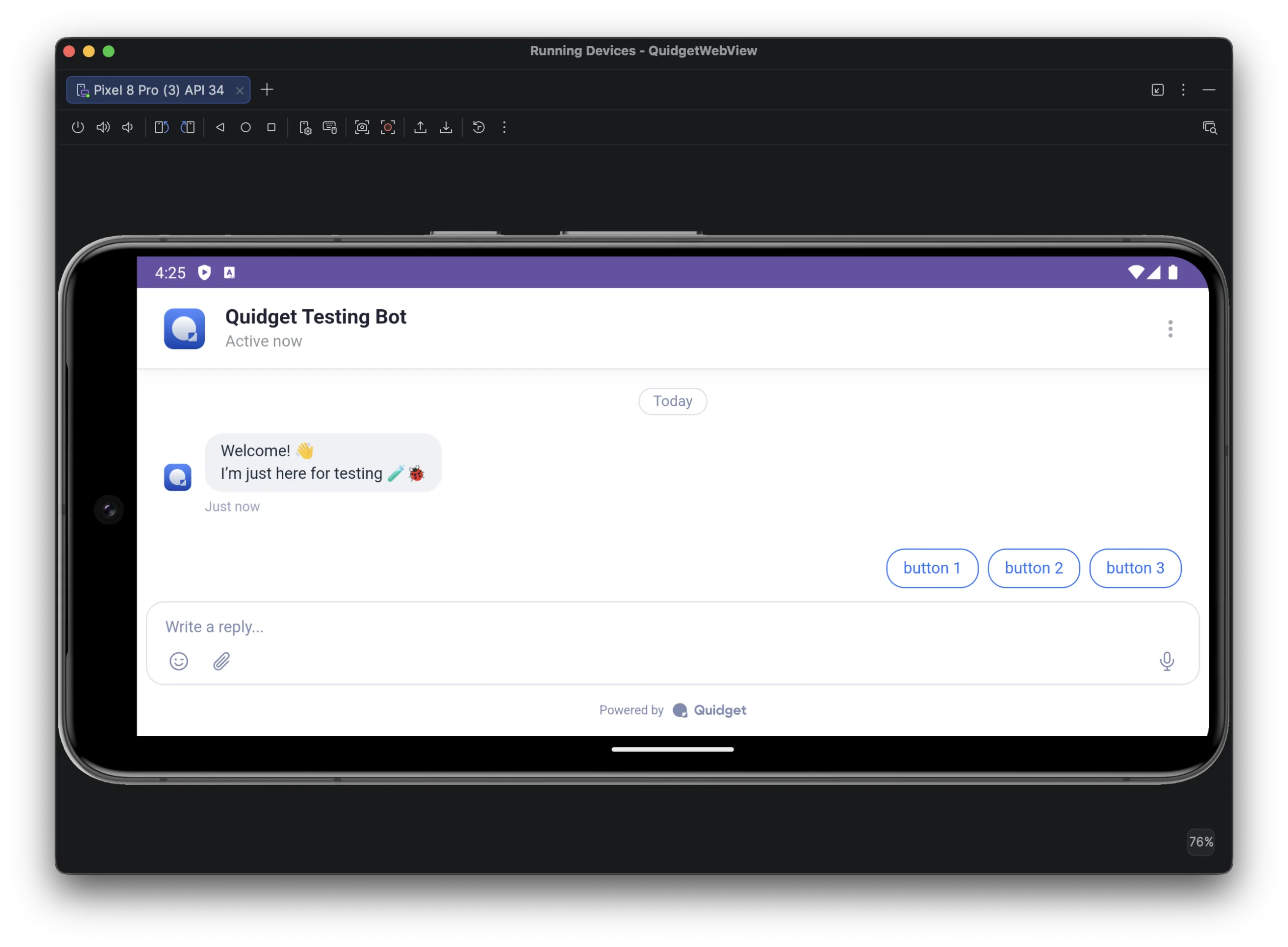
Build and run on a simulator or device. The chat opens full-screen and is ready to use.
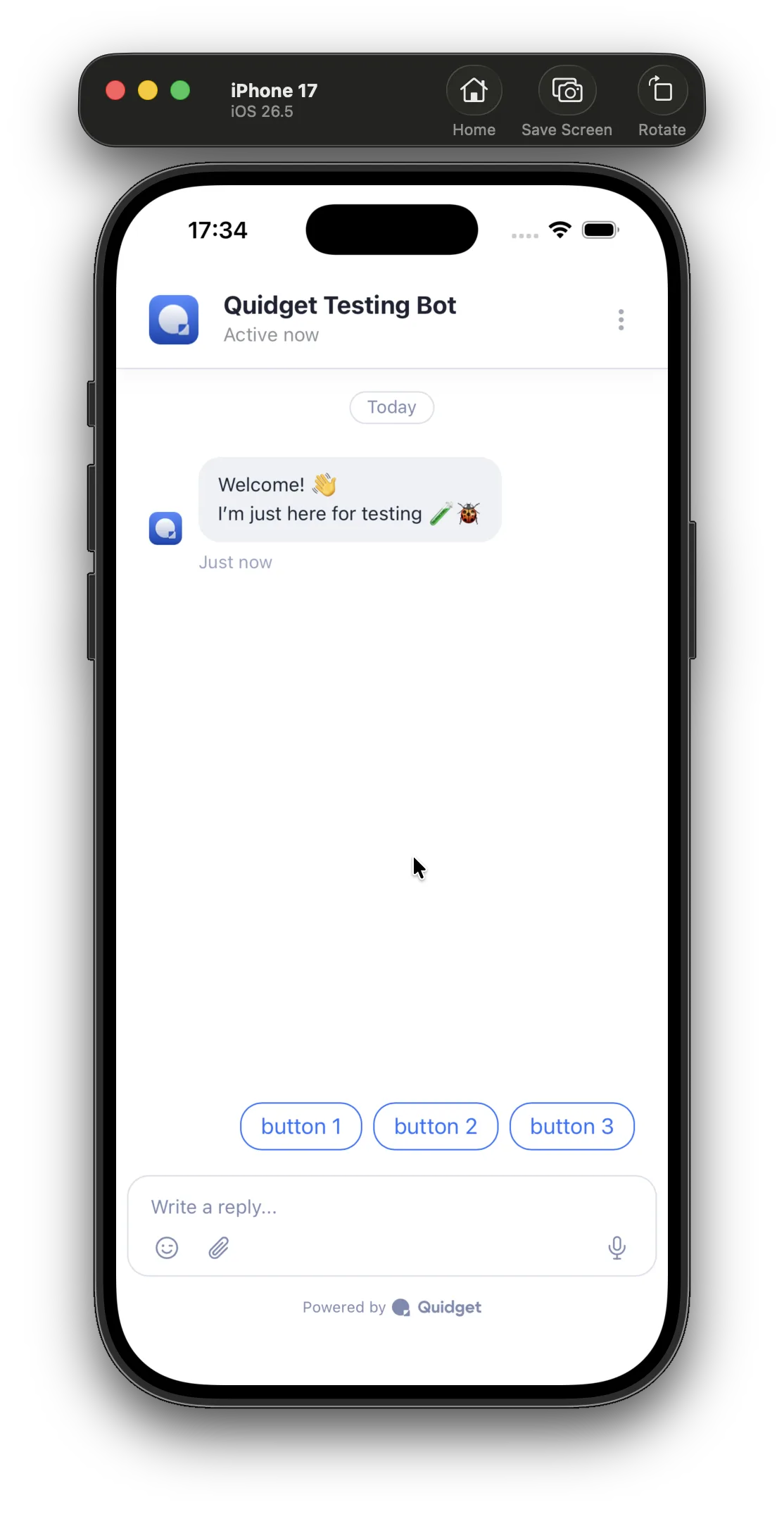
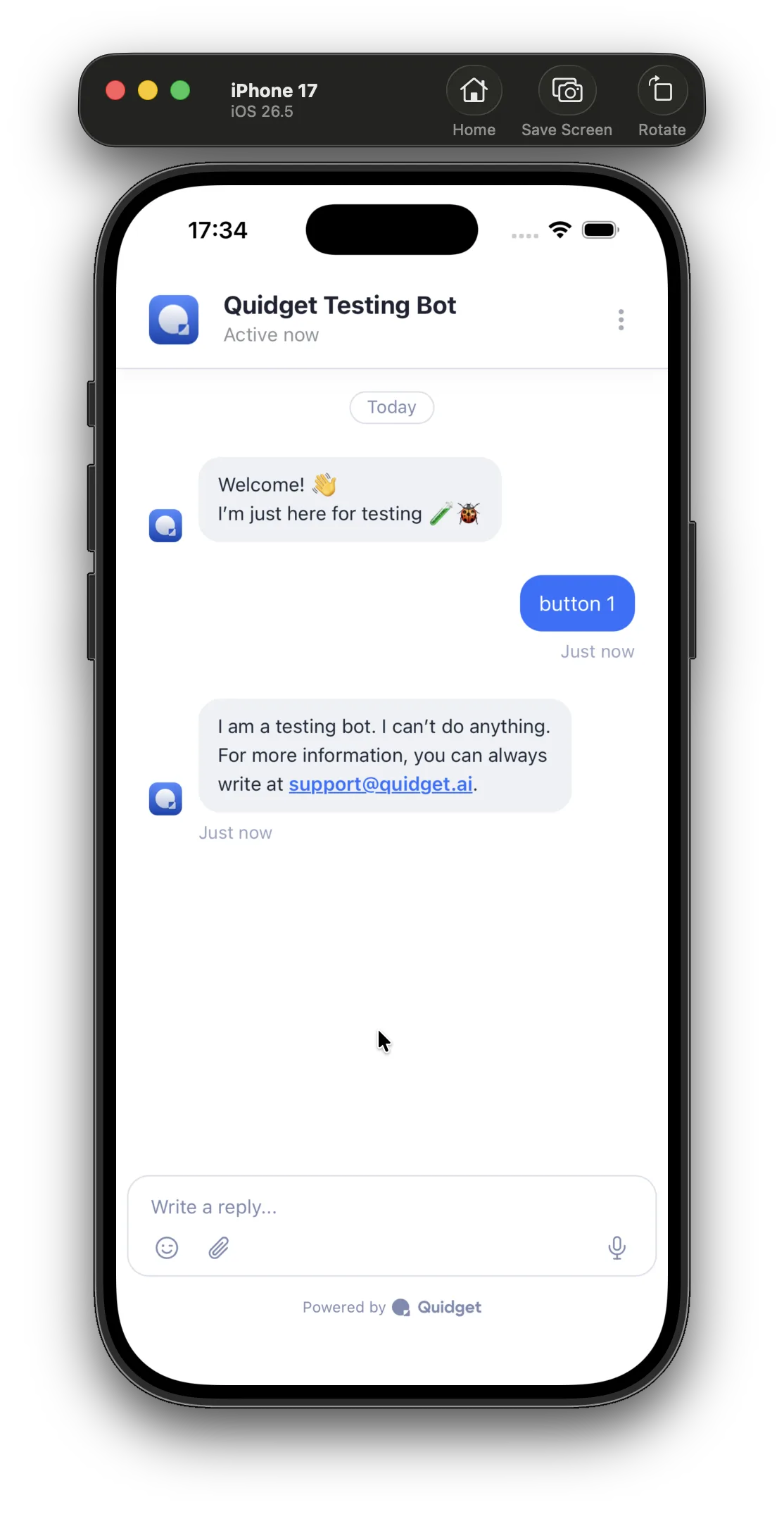
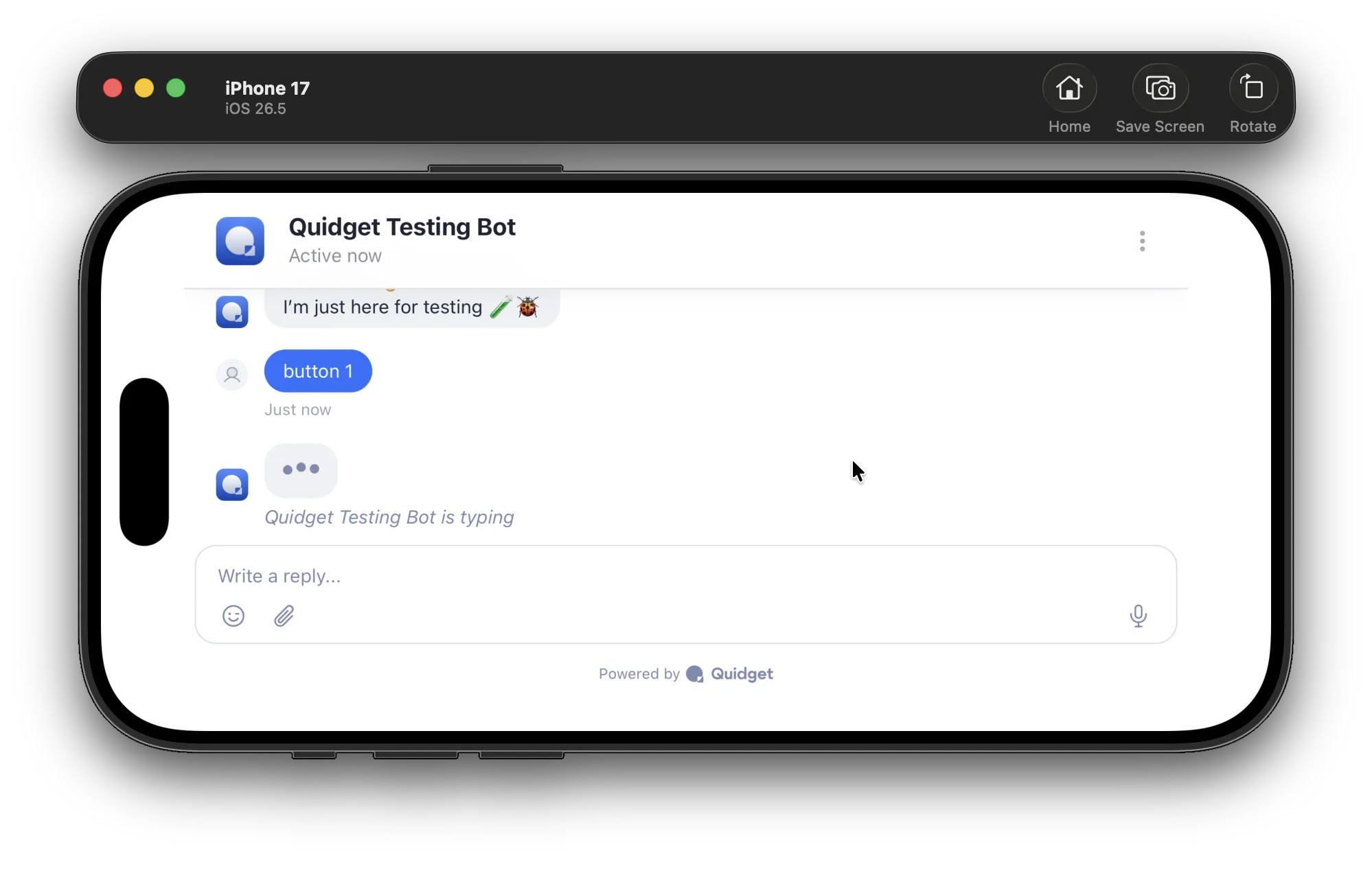
What the example handles for you
WKWebView does more out of the box than Android’s WebView. These are the pieces that still need the host app, and the example covers them:
| Feature | Notes |
|---|---|
| Chat history | works automatically — WKWebView persists storage in the default data store |
| Attachments & screenshots | work automatically — WKWebView shows its own file/photo/camera picker (just add the Info.plist keys) |
| Correct scale | injects a width=device-width viewport so the chat isn’t shrunk to a tiny size |
| Voice input | grant the capture prompt via WKUIDelegate + NSMicrophoneUsageDescription |
| Links | bot links (incl. target="_blank") open in Safari, not inside the chat |
| Dynamic Island / notch | web view is pinned to the safe area |
| Navigation | edge-swipe back is enabled |
Android
For an Android app, embed the same chat URL in a WebView. See the Android integration guide.